 Jeremy Neely
Automation & Integration · Prototype
Email SLA Monitor
A design for Teams nudges when a client email waits too long for a reply.
Built for: AME staff who own client-facing mailboxes
The problem
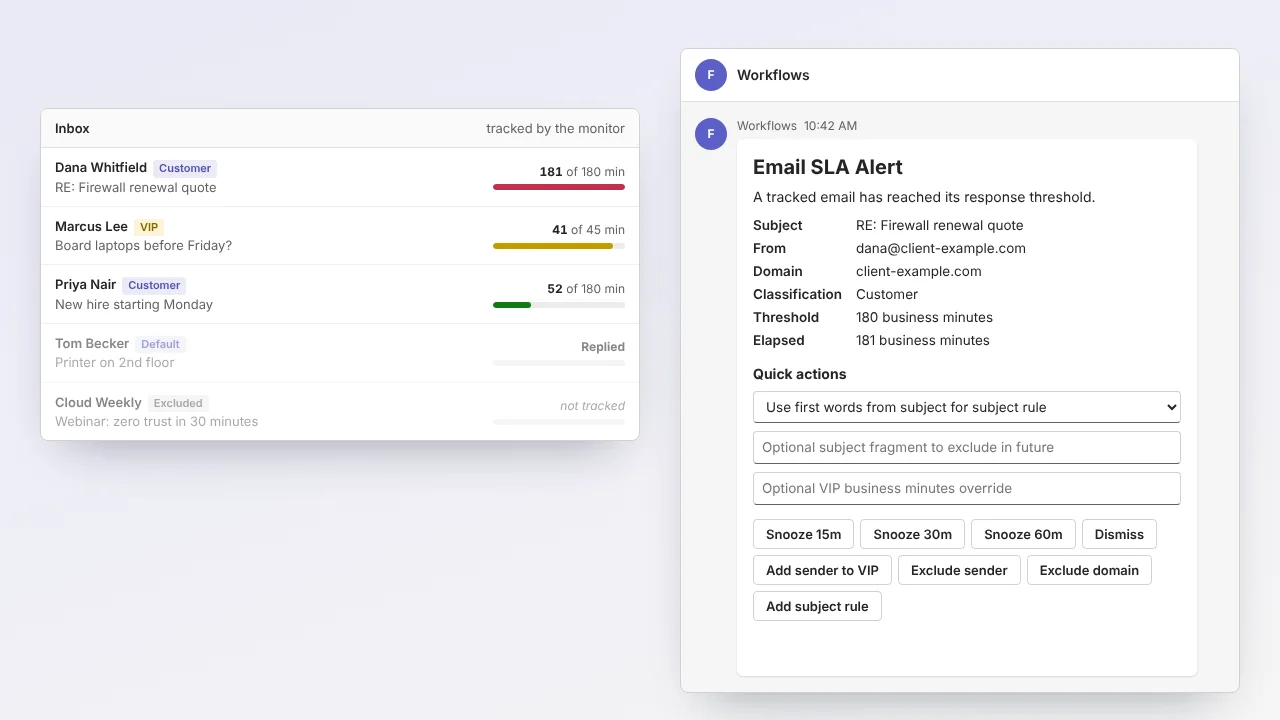
For an MSP, a client email that sits unanswered is a service-quality risk, usually found when the client follows up. Inbox rules cannot tell a real request from a newsletter, or business hours from a weekend.
What I built
I built a Power Automate solution design that tracks real inbound email and counts business minutes until you reply, then alerts you in Teams when the window passes. The final design is a Dataverse blueprint with Teams cards you can act on.
How it works
- Track each new inbound email and skip the noise.
- Pick the reply window from VIP, customer or default rules.
- Close open rows when a reply appears in Sent Items.
- Add one minute per business minute to every open row.
- Post a Teams card at the threshold to snooze or add rules.
Built with
- Power Automate
- Outlook connector
- SharePoint Online lists
- Dataverse
- Teams Adaptive Cards
- Microsoft Graph
More of Jeremy's work
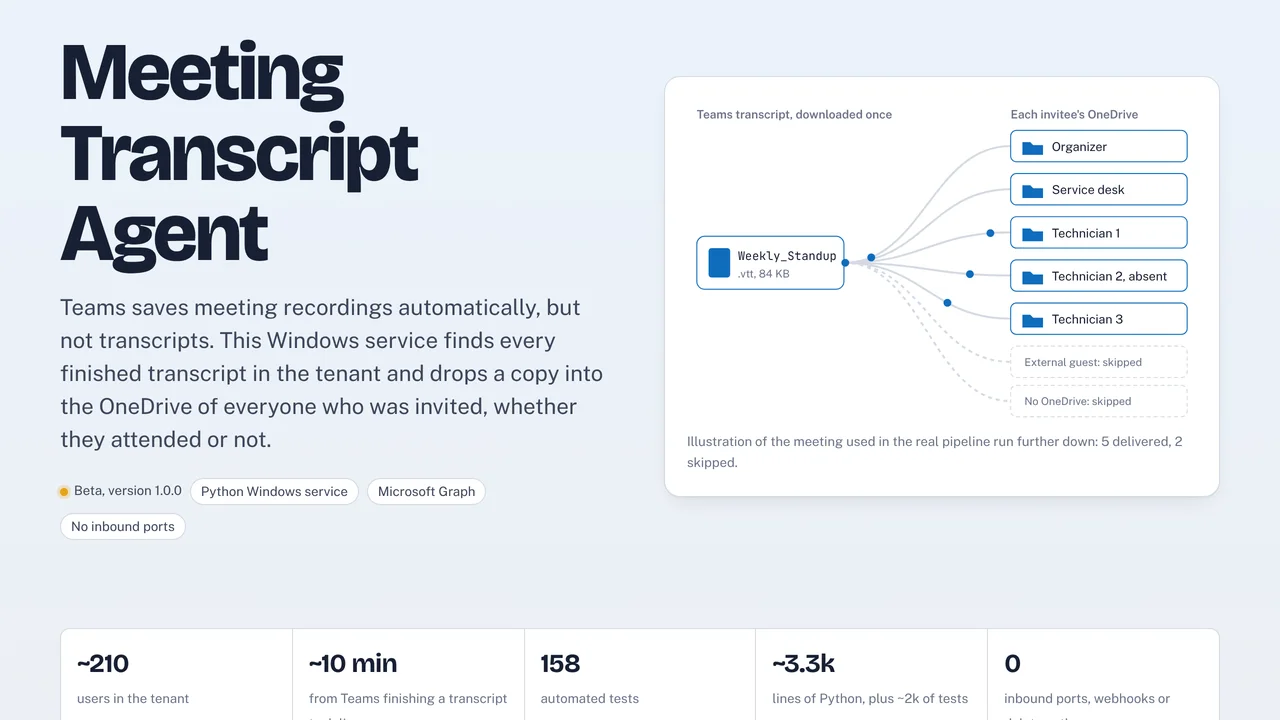 AME Meeting Transcript AgentDelivers each Teams meeting transcript to every invited person's OneDrive.
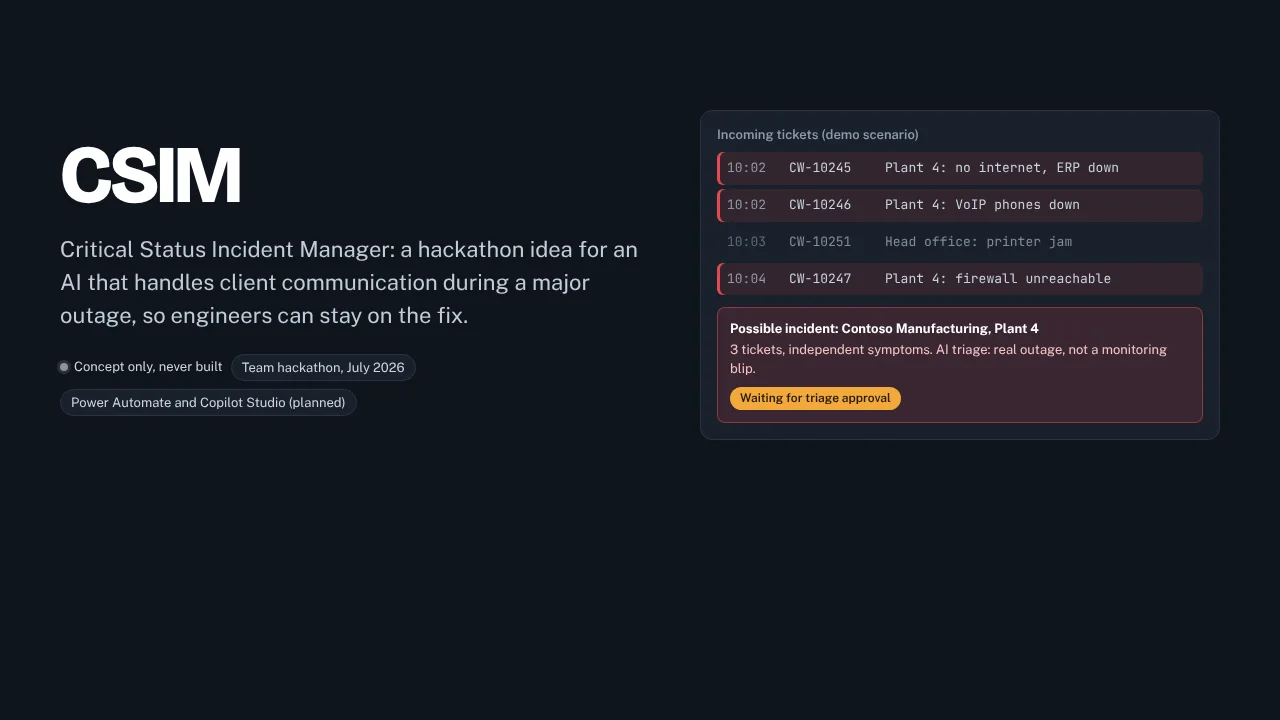 CSIMHackathon plan for AI-written client outage messages at an MSP.
- Fleet InsightsMonthly repair reports that show each branch which trucks cost too much.
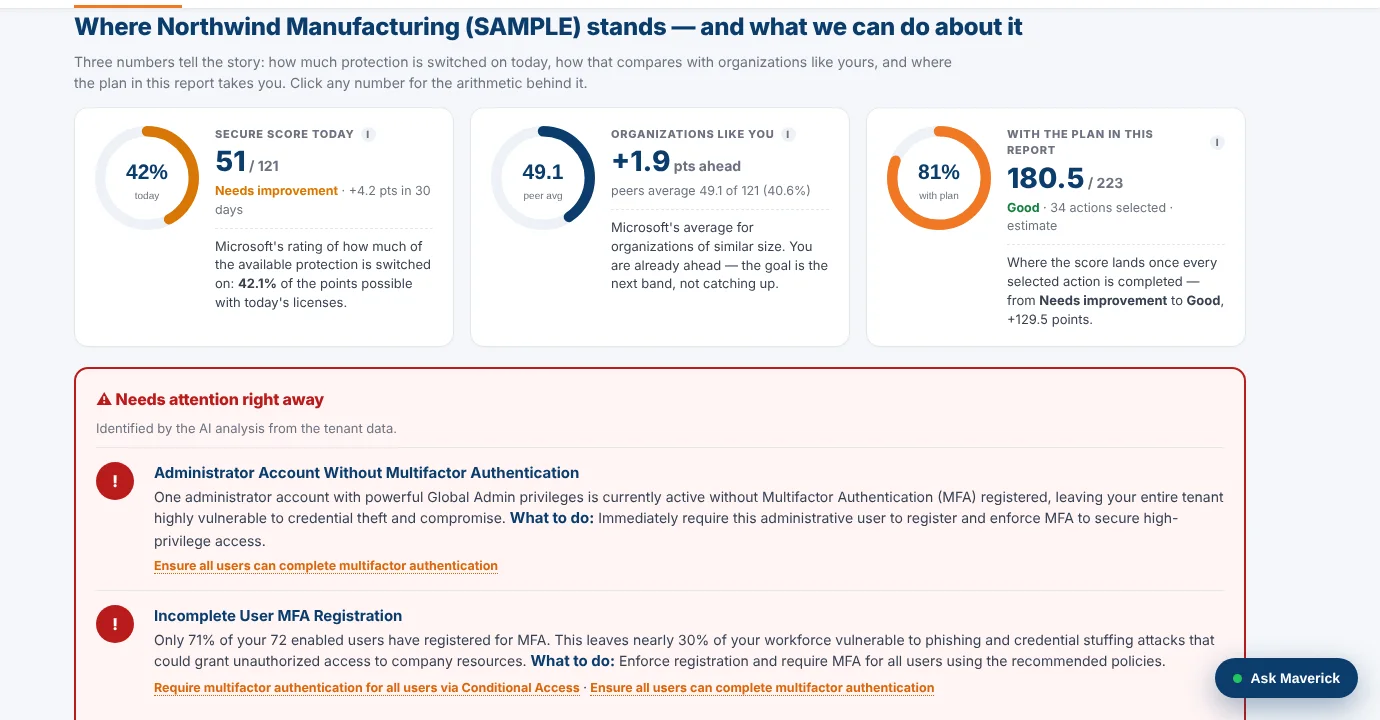 M365AssessOne read-only sign-in turns a Microsoft 365 tenant into a security plan.
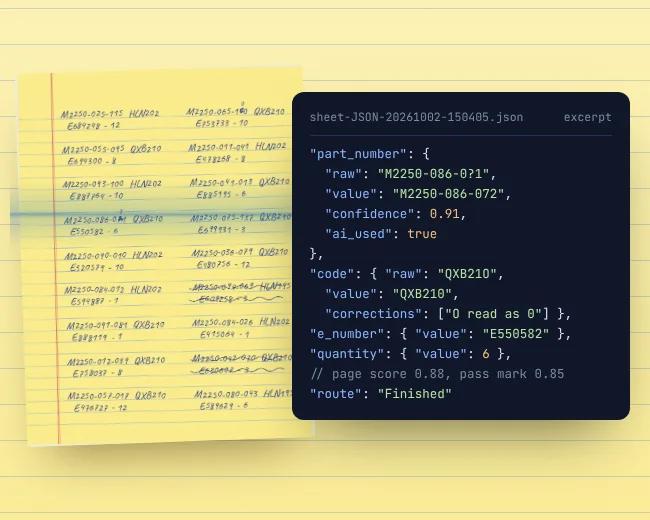 OCR WatchReads handwritten parts sheets on the PC and flags only uncertain entries.
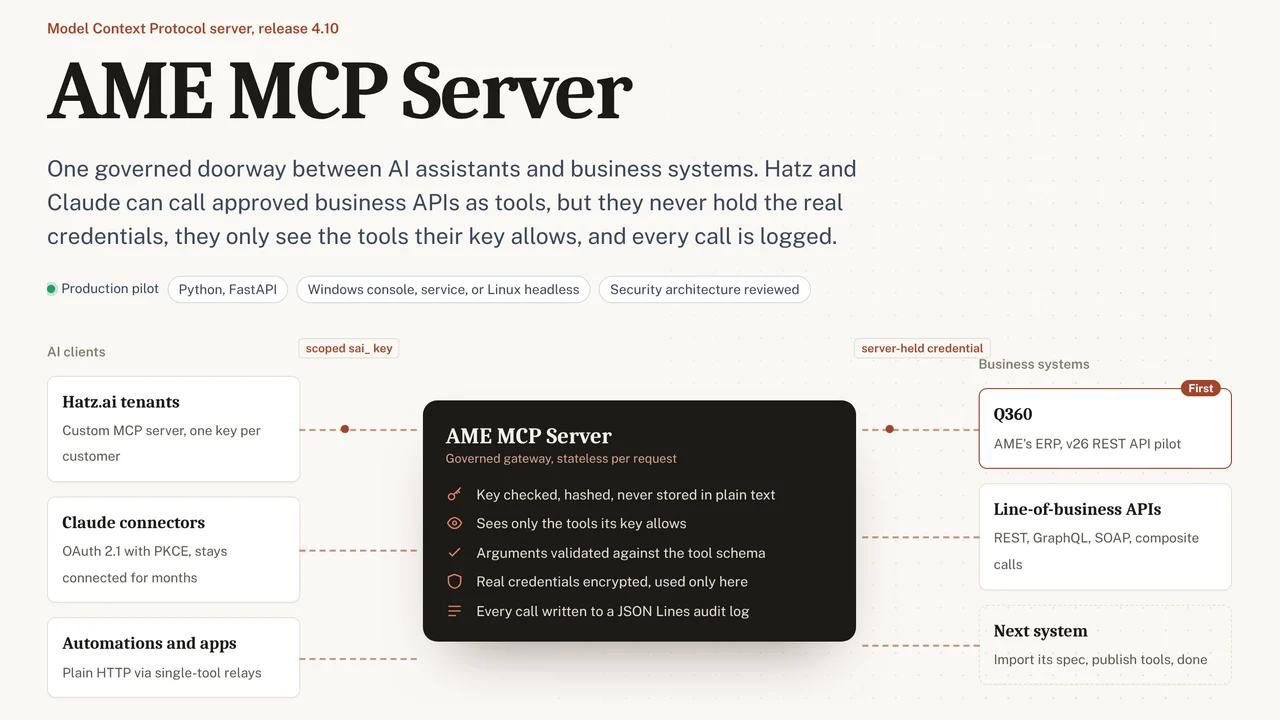 AME MCP ServerOne governed doorway between AI assistants and business systems.